Weld, Attach, Slice, Flatten: What Each Design Space Tool Does to Your Cut
Weld, Attach, Group, Flatten, Slice and the Combine tools in Cricut Design Space, shown on real letter shapes: what happens to the cut paths and when to use each.
Design Space has seven buttons that all seem to do the same thing: put shapes together. They do not. Pick the wrong one and your script text cuts into a pile of letters, or your sticker cuts around every eyelash instead of around the outside. This guide shows what each one does to the actual cut paths, with diagrams computed from real letter shapes.
Why it matters: the blade only sees paths
Your machine does not see colours or words. It sees closed paths. Every tool below changes the paths in a different way, and the change decides what gets cut, how many mats you get and whether the result is printed or cut from vinyl.
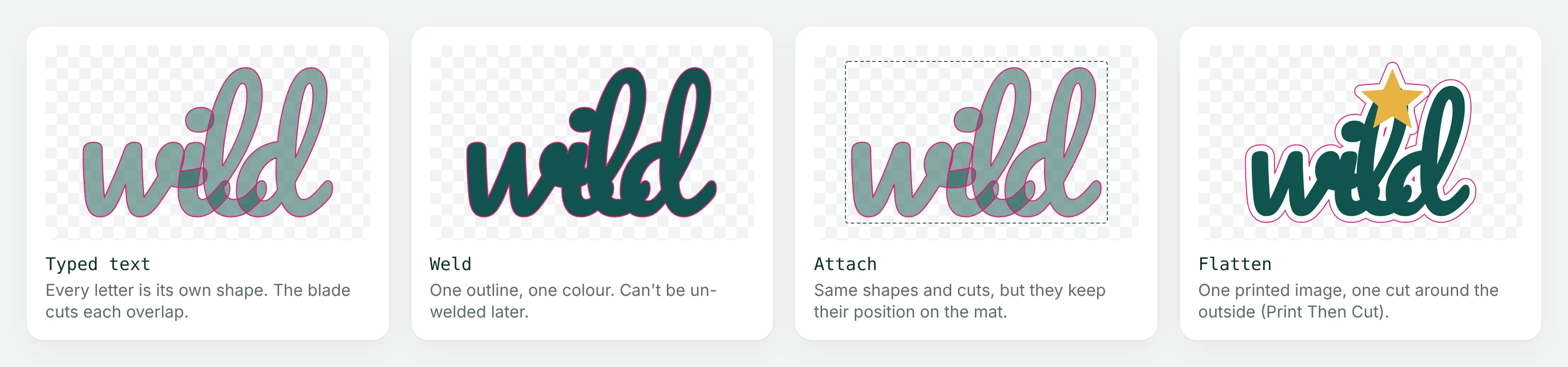
Weld
Weld merges two or more overlapping shapes into one shape with a single outline. Overlapping cut lines disappear, the result becomes one layer and takes one colour.
Use it for script fonts. When you type a word in a connected script, each letter is still its own shape, and without Weld the machine cuts every letter separately, including the lines where the letters overlap. Weld turns the word into one piece.
Weld is permanent in the sense that the result can no longer be edited as separate shapes. Undo right away if you change your mind; later you will have to rebuild it.
Attach
Attach keeps shapes exactly where you placed them relative to each other on the mat. It does not merge anything: every shape is still cut along its own path, overlaps included.
Use it to keep a design together when it is cut. Without Attach, Design Space rearranges shapes on the mat to save material, which is useful for separate pieces but ruins a layout. Attach is also how you keep a score line or draw line in position on top of the shape it belongs to.
Group is not Attach
Group only keeps shapes together while you move and resize them on the canvas. When you click Make It, grouped shapes can still be rearranged on the mat. If position on the mat matters, Attach.
Flatten
Flatten turns the selected layers into one printable image and cuts only around its outer edge. It is the Print Then Cut tool: the colours and details are printed, and the machine cuts the outline.
For stickers, put a white offset shape behind the artwork before you flatten, so the cut runs a few millimetres outside the design. The print-then-cut sticker guide covers this, and Lumekon's backing file is that offset shape, ready to use.
Slice and the Combine tools
Slice
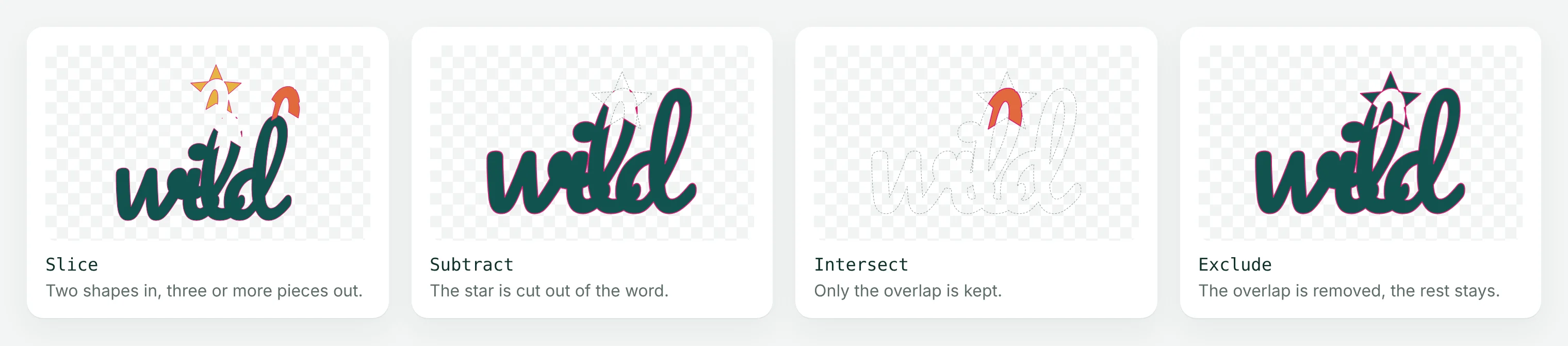
Slice cuts two overlapping shapes along each other's edges and gives you every piece as its own layer: usually the first shape minus the second, the second minus the first, and the overlap. Slice needs exactly two visible layers selected, so hide or ungroup anything else first. Delete the pieces you do not want.
Use it to cut text out of a shape (knockout lettering), to split a shape into colour pieces for layered vinyl, or to trim a design to a frame.
Combine: Unite, Subtract, Intersect, Exclude
Combine sits at the bottom of the Layers panel on desktop (in the Actions menu on mobile) and is available when two or more shapes are selected. Unlike Weld and Slice, the result stays editable: Combine → Undo restores the original shapes, though you may need to set their colours again.
- Unite: one shape from all of them. Looks like Weld, but you can undo it later.
- Subtract: removes the upper shapes from the bottom one. The star is cut out of the word.
- Intersect: keeps only the area where the shapes overlap.
- Exclude: removes the overlap and keeps everything else.
When you are sure, Merge Layers makes the Combine result permanent.
Which one should I use?
| You want to | Use |
|---|---|
| Cut script text as one piece | Weld (or Unite to keep it editable) |
| Keep a layout exactly as designed on the mat | Attach |
| Make a printed sticker with one cut around it | Flatten (with a backing shape behind) |
| Cut words out of a shape | Subtract, or Slice and delete the inside pieces |
| Split a design into pieces for layered vinyl | Slice, or start from a file that is already split into colour layers |
| Move shapes together on the canvas only | Group |
When the tools do not behave
- Slice is greyed out: more or fewer than two visible layers are selected. Ungroup or hide the extras.
- Odd slivers after Slice or Weld: the source file has overlapping duplicate paths or open paths. Check it in the SVG validator before you start.
- Flatten makes a box instead of an outline: the image has a background that was not removed. See removing the background for a cut file.