SVG, DXF, EPS or PDF: Which File Format for Cricut, Silhouette and Laser
What SVG, DXF, EPS, PDF and PNG actually store, which one each cutting program opens, and which file from a design bundle to use for your machine.
You download a design and the ZIP holds an SVG, a DXF, an EPS, a PDF and a PNG. Which one goes into your machine? The short answer: SVG for Cricut and Silhouette Designer Edition, DXF for Silhouette Basic and most laser and CNC work, and the rest are for other programs. The long answer depends on what each format actually stores, and that is what this guide is about.
What each format stores
SVG
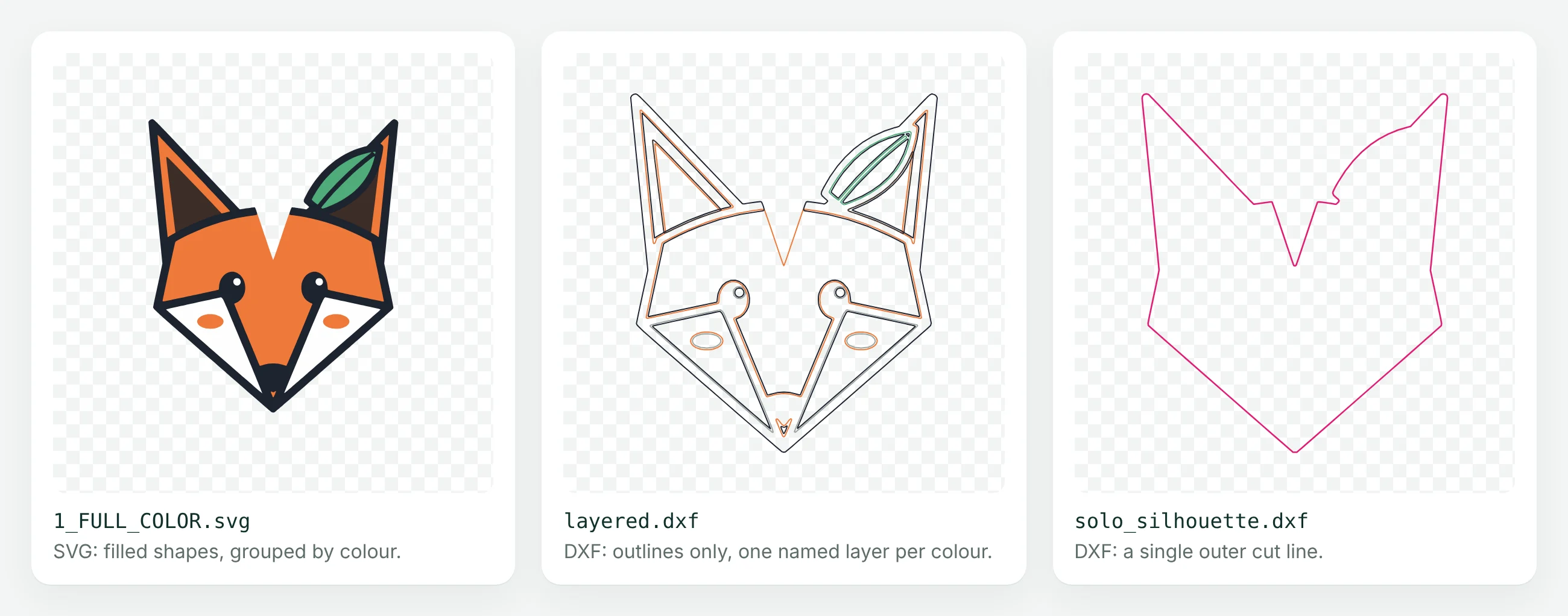
SVG is a vector format built for the web. It stores shapes with fills, strokes, colours and groups, so a multi-colour design arrives as one file with its colours intact. Cutting software reads each closed shape as a cut path and each colour as a separate layer or mat.
Things that do not belong in a cutting SVG: live text (fonts may not be installed on the other computer), clipping masks, embedded raster images and stroke-only lines that were meant to be shapes. Our SVG validator flags all of these.
DXF
DXF is the CAD exchange format. It stores geometry on named layers, in real units, and nothing else: no fills, no colour artwork, no gradients. That makes it look plain on screen, and it is exactly why laser and CNC software likes it. What you see is what gets cut.
Two DXF details matter in practice:
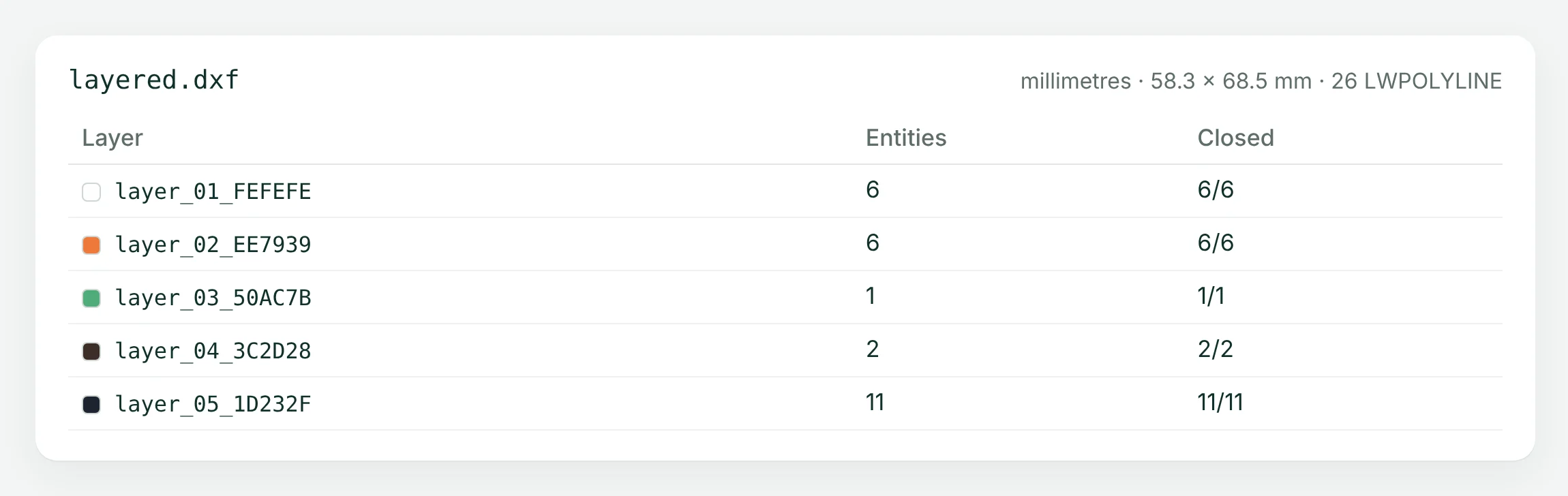
- Units. A DXF records its units in the header. A file drawn in millimetres but read as inches comes in 25.4 times too big. Lumekon's DXF files are in millimetres.
- Layers. In a layered DXF each colour is a named layer. Lumekon names them after the colour, for example
layer_02_EE7939, so you can map them back to the artwork.
EPS
EPS is an older PostScript-based format. It is still common in design bundles because Adobe Illustrator and many print workflows open it. Cutting software support is patchy: Cricut Design Space does not upload it, and in Silhouette Studio it needs the Business Edition. Keep it for designers who edit in Illustrator, not for your machine.
A PDF can hold vector artwork, but cutting programs treat it unevenly. LightBurn imports PDF. Silhouette Studio Designer Edition opens it, but you may have to trace it to get cut lines. Cricut Design Space does not accept PDF uploads. PDF is a good format for printing a design or a sticker sheet, not usually for cutting it.
PNG
PNG is a raster image: pixels, not paths. It is the right format for previews, listing photos and Print Then Cut artwork, but a machine cannot cut along pixels without tracing them first. If you only have a PNG, convert it to a cut file first.
Which format for which machine
| Software | Use | Notes |
|---|---|---|
| Cricut Design Space (desktop) | SVG | DXF also uploads. Layers from a layered SVG or DXF are separated automatically. Design Space rejects SVGs with more than 5,000 paths. |
| Cricut Design Space (iOS, Android) | SVG | DXF is not supported in the mobile apps. |
| Silhouette Studio Basic Edition | DXF | Basic opens DXF with cut lines; SVG and PDF need Designer Edition or higher. |
| Silhouette Studio Designer Edition and up | SVG | SVG opens with cut lines. EPS only in Business Edition. |
| LightBurn | SVG or DXF | Also imports AI, PDF and PLT/HPGL. Convert text to paths first: LightBurn does not import embedded fonts. |
| CAD and CNC (Fusion, AutoCAD, VCarve) | DXF | Check units on import. |
| Adobe Illustrator, Inkscape | SVG or EPS | Both edit SVG directly. |
Software editions and import options change; check the current documentation for your version if a file will not open.
Single-colour, layered or outline only?
Within a format there are still different files for different jobs. A typical Lumekon download includes:
- Full-colour SVG: every colour as its own group. For layered vinyl or for Print Then Cut artwork.
- Cut file SVG: the detailed cut lines in one colour.
- Backing SVG: one offset outline around the whole design, for stickers. See the print-then-cut guide.
- Layered DXF: one named layer per colour, for Silhouette Basic, laser and CAD.
- Engrave and cut-outline files in CNC / Laser mode: stroke-only engraving plus one outline for the through-cut. See the LightBurn guide.
Common problems by format
- SVG opens at the wrong size: the file has no physical units or the program assumes a different DPI. See fixing SVG scale and units.
- SVG upload fails in Design Space: too many paths, or an unsupported element. Run it through the validator.
- DXF imports as one colour: that is normal. DXF has no fills; use the layer names to assign colours or operations.
- DXF shapes do not fill or cut out: the outlines are open. See what an open path is.